
How to Create a Webinar Using AI
By Ian Naylor ·
Drafted with AI assistance, then fact-checked and edited by Ian Naylor before publishing.
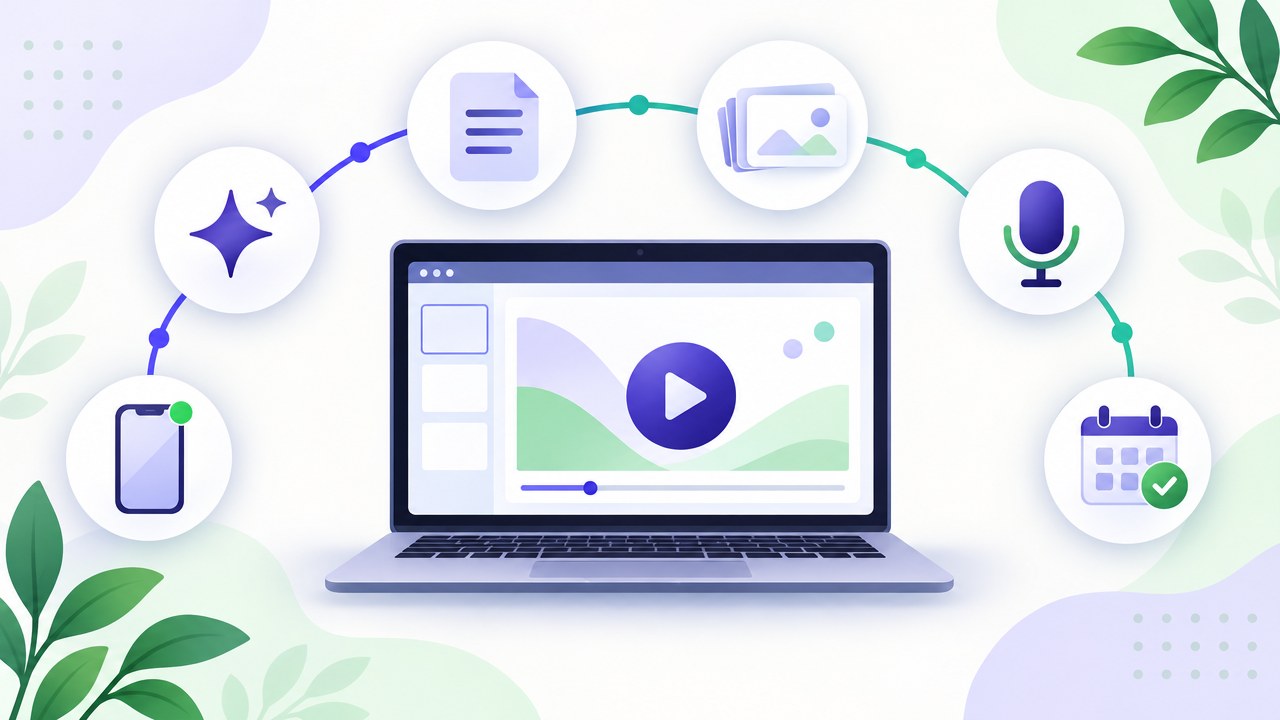
To create a webinar with AI, use it as a fast first-draft partner at each stage: let it help you sharpen the topic and promise, draft the outline and script, turn the script into slides, tidy up the recording, and write the registration page and emails. Then you edit everything, record the session once, and let it run. AI can take a lot of the blank-page work off your plate, but it cannot supply your expertise, your proof or your judgement. The webinars that work are the ones where AI does the drafting and a human does the deciding.
This guide walks through the whole process step by step, with prompts you can copy, a checklist, and an honest look at where AI helps and where it gets in the way. If you are new to the format, our guide to evergreen webinars explains how a recorded webinar can run on a schedule, and our webinar software guide covers what the platform side needs to do.
What "creating a webinar with AI" actually means
"AI webinar creation" covers a few quite different things, and it helps to separate them before you start:
- AI for planning and writing. Chat-style AI assistants help you choose an angle, build an outline, and draft a script, titles and emails. This is where most of the time saving is.
- AI presentation generators. Tools that turn an outline or script into a slide deck with layouts and visuals. Useful for a first draft of the deck, less useful for the final one.
- AI for recording and editing. Features that remove filler words, clean up audio, add captions or produce a transcript. Some tools can also generate a voiceover or an AI avatar presenter (we compare some of these on our AI avatar tools page).
- AI during the webinar. AI that answers attendee questions while the session runs, so a recorded webinar is not a dead end for someone who wants to know more.
An "AI webinar generator" that promises to do all of this from a single prompt will give you something that looks like a webinar. Whether it persuades anyone depends on how much of you goes into it.
Step 1: Pick the topic and the promise
Start with the outcome, not the slides. A webinar earns attention by promising something specific to a specific group of people. AI is good at generating options here; you are good at choosing the right one.
Give the AI real context: who your buyers are, the problem you solve, the objections you hear most, and what you want viewers to do at the end. Then ask for options.
Prompt: "I sell [product] to [audience]. Their biggest frustration is [problem]. The questions I hear most on sales calls are [list]. Suggest ten webinar titles that promise a specific, believable outcome in under 45 minutes. Avoid hype words."
Pick the one that matches a real conversation you keep having with prospects. The best webinar topics are usually the questions you are already answering by hand, again and again.
Step 2: Build the outline
Ask the AI for an outline that follows a proven shape: a hook, the problem, the teaching, proof, the offer, and questions. Tell it how long the session should be and what the single call to action is.
Prompt: "Create an outline for a [length]-minute webinar titled [title]. Structure: a 90-second opening hook, the problem, three teaching points, a short demo, the offer, and a Q&A section. Give a timing for each section. The one call to action is [CTA]."
Then edit hard. AI outlines tend to be balanced and generic; yours should lean towards what your audience actually cares about. Cut any section you could not teach with genuine authority, and add the story or example only you can tell.
Step 3: Draft the script with a webinar script generator
A webinar script generator (or any capable AI assistant) can turn your outline into a first draft in minutes. The trick is to feed it your own material so it does not invent things.
- Paste in a transcript of a good sales call or demo you have given, your best-performing landing page copy, and the answers you give to common objections.
- Ask it to write in a conversational, spoken style, with short sentences and natural transitions.
- Tell it not to add statistics, quotes or customer names unless they are in the material you supplied.
Prompt: "Using only the material below, write a spoken script for this outline. Keep sentences short and conversational. Do not add statistics, customer names or claims that are not in the material. Mark any place where I need to add a real example with [EXAMPLE]."
Read the draft aloud. Anything you would not say in real life, rewrite. Check every claim against your own sources. Our webinar script guide has timings, two full templates and 40 word-for-word lines you can use to strengthen the draft, including a pattern for scripts that will be played as a recording.
Step 4: Turn the script into slides with an AI presentation generator
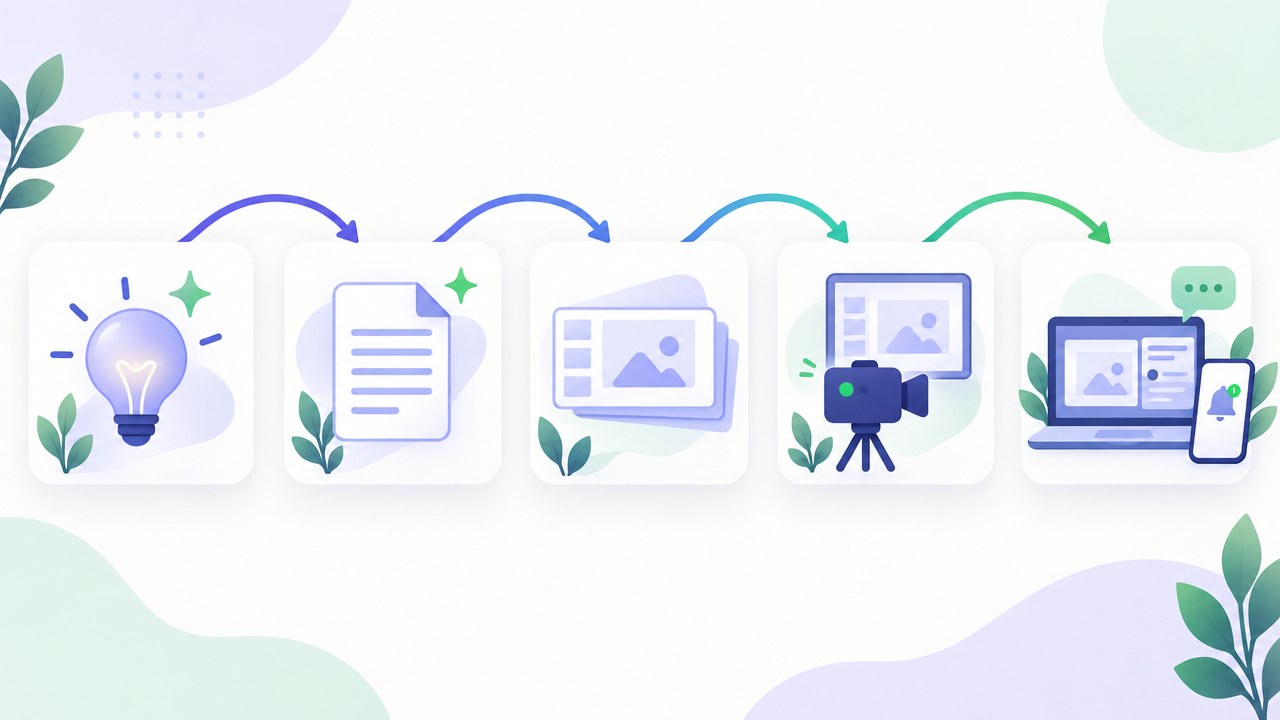
An AI presentation generator can produce a deck from your outline or script quickly. Use it for structure and layout, then make the deck yours:
- One idea per slide. AI decks often cram several points onto one slide. Split them.
- Fewer words on screen. The script carries the words; the slides carry the picture. If a slide reads like a paragraph, cut it to a few words or a visual.
- Real screenshots for demos. Generated images are fine for concepts, but anything showing your product should be the real thing.
- Your brand. Apply your own fonts and colours so the deck does not look like everyone else's AI-made deck.
- Check every chart and number. If the AI drew a chart, make sure the data behind it is real and sourced, or delete it.
Step 5: Record it once, properly
With the script and slides ready, record the session. Treat it as the definitive version of your pitch, because if it is going to run on demand, every future viewer will see this take.
- Rehearse once with the script, then deliver it naturally rather than reading word for word.
- Use AI editing features to remove long pauses, filler words and mistakes, and to add captions.
- Keep the energy of a live session: speak to one viewer, invite questions, and refer to the chat.
- Avoid time-sensitive references ("this morning", "this week") if the recording will run for months.
Should you use an AI avatar or a cloned voice instead of yourself? It can work for training or internal content. For sales webinars, think carefully: buyers are deciding whether to trust you, and seeing the real person usually helps. Whatever you choose, be honest about what viewers are watching.
Step 6: Write the registration page and emails with AI
AI is very good at producing variations of short copy. Use it to draft the registration page headline and bullets, the confirmation email, reminders and follow-ups, then edit for accuracy and tone. Our guide to building a webinar funnel has a stage-by-stage template and a simple email sequence you can give the AI as a structure.
Prompt: "Write a registration page for this webinar: [title, audience, three things they will learn, presenter]. One headline, one subheading, three to five bullets and a button label. Plain, specific language, no hype."
Step 7: Run it on a schedule, and make sure questions get answered
Once the recording exists, you do not need to present it live every time. Running it as an evergreen or automated webinar means prospects can watch at a time that suits them, in any time zone. Our comparison of the best automated webinar software covers the main platforms for this.
The weak point of any recorded webinar is the moment a viewer has a question. That is where AI can help during the session, not just before it. In Webinar Flow, you record your pitch once and it runs on a schedule. While people watch, an AI answers their questions from your own material (your presentation, notes, documents, website pages and the answers you have given before). When a question needs you, or shows someone is ready to buy, your phone gets a push notification and you can pop into that room by chat or on camera, then hand it back to the recording. You can see the plans on the pricing page or compare it with other tools on the comparison page.
A checklist for creating a webinar with AI
| Stage | What AI does well | What you must do |
|---|---|---|
| Topic and promise | Generate title and angle options | Choose the one that matches real buyer questions |
| Outline | Suggest a structure and timings | Cut generic sections; add your own story and proof |
| Script | Draft from your own material | Read aloud, rewrite, check every claim |
| Slides | Produce a first-draft deck and layouts | One idea per slide; real screenshots; your brand |
| Recording | Clean audio, remove filler, add captions | Deliver it with genuine energy; avoid dated references |
| Registration and emails | Draft copy variations quickly | Edit for accuracy and a consistent promise |
| Running the session | Answer repeat questions from your material | Step in when a question needs you or shows buying intent |
What AI cannot do for your webinar
AI is a strong assistant and a weak authority. Keep these limits in mind:
- It does not know your customers. It can only reflect what you give it, plus generic patterns from elsewhere.
- It can make things up. AI tools can produce confident statistics, quotes and examples that are not real. Never publish a number you have not traced to a source.
- It writes in an average voice. Left alone, AI copy sounds like everyone else's. Your examples, opinions and phrasing are what make people listen.
- It cannot build trust on its own. Buyers trust people who clearly understand their problem. Use AI to save time, not to replace being there when it matters.
Common mistakes when using AI to create a webinar
- Prompting without context. A one-line prompt gets a generic webinar. Give the AI your transcripts, objections and positioning.
- Publishing the first draft. AI drafts are starting points. Edit every script, slide and email.
- Too many slides. AI presentation generators make adding slides effortless, which makes webinars longer, not better.
- Invented proof. A fabricated statistic or testimonial can undo the trust the rest of the webinar builds.
- Recording and forgetting. A recorded webinar still needs someone (or something) to answer questions and spot ready buyers.
FAQ
Can AI create a complete webinar?
AI can draft most of the parts of a webinar: the topic, outline, script, slides, emails, and even a synthetic voice or avatar presenter. What it cannot provide is your expertise, real proof and judgement, so the result still needs a human to edit, check and deliver it if you want it to persuade.
What is an AI webinar generator?
An AI webinar generator is a tool, or a combination of tools, that produces webinar materials from a prompt or source content, such as a script, a slide deck or a narrated video. Treat its output as a first draft rather than a finished webinar.
What is the best way to use a webinar script generator?
Feed it your own material (sales call transcripts, landing page copy, answers to objections), give it a clear outline and length, and tell it not to add statistics or claims that are not in your material. Then read the script aloud and rewrite anything that does not sound like you.
Should I use an AI presentation generator for webinar slides?
It is a quick way to get a first draft of the deck. Keep one idea per slide, use real screenshots for anything that shows your product, apply your own branding, and check any chart or number it adds.
How long does it take to create a webinar with AI?
It depends on how much source material you already have and how much editing you do. AI mainly removes the blank-page time from planning, scripting and slides; rehearsing, recording and checking still take human time.
Can AI answer questions during a webinar?
Yes. Some webinar platforms use AI to answer attendee questions during the session. In Webinar Flow, the AI answers from your own material and previous answers, and sends anything it is not sure about, or any sign of buying intent, to your phone so you can join by chat or video.
Should a sales webinar use an AI avatar instead of a real presenter?
It is possible, but for sales webinars a real presenter usually builds more trust, because buyers are deciding whether to trust you. If you use an avatar or cloned voice, be open about it.