
How to Create an Evergreen Webinar From a Live Recording
By Ian Naylor ·
Drafted with AI assistance, then fact-checked and edited by Ian Naylor before publishing.
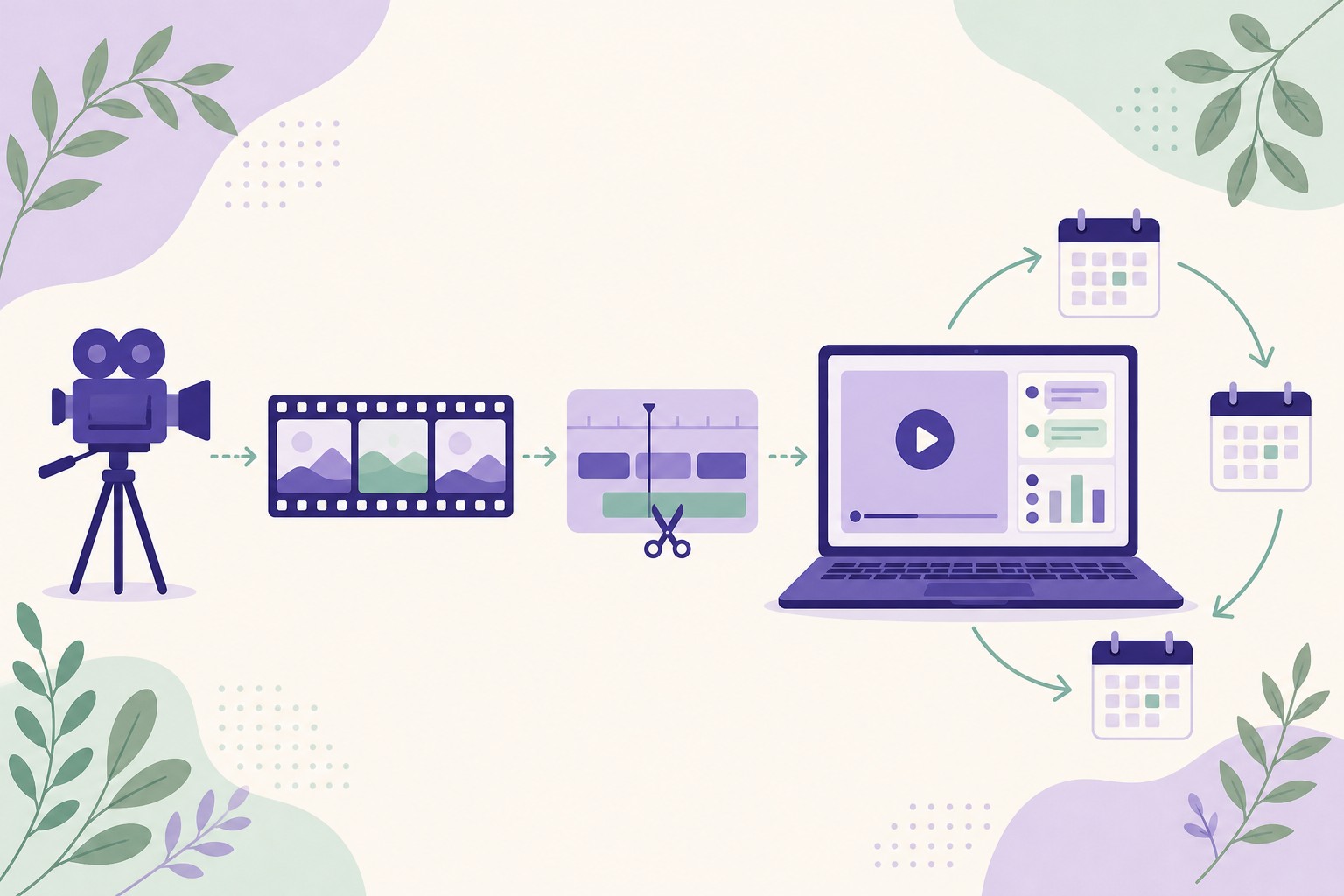
To create an evergreen webinar from a live recording, choose a session that already worked, check that what it says is still true, trim out the moments that only made sense on the day (the waiting, the housekeeping, the dated references and the "offer ends Friday"), and then run the edited recording on a schedule with a booking page, reminders, timed chat, polls, a clear next step and a reliable way to answer questions. You keep the energy and credibility of a real session, and it keeps working for you long after the live audience has gone home.
Most teams already have the raw material. A live webinar that went well is usually sitting in a cloud folder, watched once by the people who turned up and maybe sent to registrants as a replay. That recording can become a session prospects book every day, at a time that suits them, without anyone presenting it again.
This guide covers how to decide whether a recording is good enough, how to edit it, how to replace the parts of a live session that a recording cannot do on its own, and how to keep it accurate over time. If you are new to the format, start with our complete guide to evergreen webinars.
Why turn a live recording into an evergreen webinar?
A live webinar is a lot of work for one hour. You plan it, promote it, rehearse it and deliver it, and then it is over. Turning the recording into an evergreen webinar lets that work pay off for months instead of for a single afternoon.
- Your best session runs every day. Prospects no longer have to wait for your next live date, or catch you in the right time zone.
- You keep what made it work. A real session has natural pacing, real examples and genuine answers to real questions. That is often more convincing than a polished studio recording made from scratch.
- Your time goes to the conversations that matter. Instead of presenting the same material again, you spend your time answering questions and talking to people who are ready to buy.
- You learn from every viewing. Each session tells you where people drop off, which questions keep coming up and which offers get clicked, so the next version gets better.
- It costs far less than starting over. You are editing something that already exists, not writing, rehearsing and filming a new presentation.
When a live recording works, and when it does not
Not every live session should become an evergreen webinar. Before you start editing, be honest about the recording in front of you.
A recording is a good candidate when:
- the session generated questions, sign-ups or sales conversations when it ran live;
- most of the content is about a problem and an approach that will still be true in six months;
- the audio is clear and the screen or slides are readable;
- the presenter sounds confident and the structure holds together without the live context.
It is a weak candidate when:
- it was built around news, a launch date or a time-limited offer that runs all the way through;
- a large share of the hour is audience Q&A that only makes sense to the people who were there;
- the product has changed so much that the demo no longer matches what people will see;
- the sound is poor, the screen share is blurry or there were long technical problems.
If the recording falls into the second group, it can still be useful. Use it as a draft: keep the structure and the best explanations, and record a fresh take of the parts that no longer work. Our guide to writing a webinar script helps if you decide to re-record sections.
Edit, re-record or start again?
| Situation | Best option |
|---|---|
| Content is accurate, sound is good, a few dated remarks | Edit the recording |
| Strong talk, but the product demo is out of date | Keep the talk, re-record the demo section |
| Great Q&A, weak presentation | Re-record the presentation, keep the best questions as a FAQ and chat prompts |
| Poor audio or video throughout | Re-record, using the live session as your script |
| Topic or offer no longer relevant | Start again with a new session |
How to create an evergreen webinar from a live recording, step by step
1. Pick the session that already did its job
Choose the live session that produced the outcome you want from the evergreen version, whether that is booked calls, trial sign-ups or qualified leads. A session that people stayed for and asked good questions in is worth more than one that simply had a big audience. If you have run the same webinar several times, use the version where you were most relaxed and clear.
2. Watch it end to end and make notes
Watch the whole recording at normal speed, as a viewer would, with a notepad. Write down the timestamp of anything that:
- refers to a date, a day of the week, "this morning" or "next week";
- mentions a price, plan, feature or screen that has changed;
- depends on the live audience, such as "I can see Sarah's asking…" or "let's take a quick show of hands";
- is waiting, technical trouble or housekeeping ("can everyone hear me?", "we'll give people a couple of minutes to join");
- promises something that will not happen for a later viewer, such as a live bonus or a deadline.
This list becomes your edit plan.
3. Check the facts are still true
Go through every claim, price, feature and screenshot and check it against what you offer today. An evergreen webinar can run for months, so an outdated price or a feature that has been renamed does more damage than it would in a one-off session. If the demo section is out of date, re-record just that part rather than leaving it in.
4. Trim the recording
Most live recordings get noticeably better with a few simple cuts:
- Cut the wait at the start. Begin as close as possible to the point where you start delivering value. Late joiners will not be an issue in an evergreen session.
- Shorten the housekeeping. Keep one sentence on how to ask questions and what to expect, and cut the rest.
- Remove dead time. Technical glitches, long pauses, screen-share fumbles and tangents can usually go.
- Fix the timeless problem. Cut or re-record references to specific dates, events and seasons so the session makes sense whenever someone watches.
- Keep the natural feel. Do not over-polish. A few conversational moments make the session feel human, which is part of why a live recording works.
Aim for the shortest version that still delivers the promise in your title and leads naturally to the next step. Our article on evergreen vs live webinars covers the wider trade-offs between the two formats.
5. Decide what to do with the live Q&A
Live Q&A is often the most valuable part of a session and the hardest to reuse. A good approach is to:
- Keep the two or three best answers in the recording if they work without context, and lightly introduce them ("a question that comes up a lot is…").
- Cut questions that relied on the live audience or only mattered to one person.
- Turn every good question into reusable material. Add them to an FAQ on your booking page, use them as scheduled chat prompts and add the answers to the material your Q&A draws on, so later viewers get the same quality of answer.
6. Replace live-only moments with timed interaction
The live session had a chat full of people, polls and a presenter reacting in real time. The recording needs those moments rebuilt so later viewers have something to do besides watch:
- Timed polls at the points where you asked the live audience something.
- Scheduled chat messages that introduce each section, point to resources or prompt a question.
- A timed offer that appears at the moment you make your call to action in the recording.
Plan these against the timestamps in your edit. They keep people engaged and give you signals about who is interested. Our guide to webinar lead generation explains how to use those signals to qualify leads.
7. Rework the offer and call to action
Live sessions often end with a deadline that only applied on the day. For an evergreen session, replace it with a next step that is always true: book a call, start a trial, see a tailored demo or download a resource. If you want urgency, tie it to something real for each viewer, such as a short window to book a call after watching, rather than a date that will look wrong next month.
8. Be clear that it is recorded
Say plainly on the booking page and in the room that the presentation is recorded, and that questions are still answered. People do not mind a recorded session. They mind feeling misled. Being upfront builds trust, and the fact that questions get real answers is what makes the session feel alive.
9. Plan how questions get answered
This is where most pre-recorded webinars fall down. A viewer asks a question and nobody replies. Decide in advance how every question will be handled:
- answers drawn from your own material, including the transcript of the live session, for the common questions;
- an alert to a team member's phone for new questions or anyone showing buying intent, so a person can reply quickly or join the room;
- a follow-up email for anything that could not be answered in the session.
Our guide to AI webinar software covers what AI can sensibly handle and what should stay with a person.
10. Set the schedule, booking page and reminders
Choose session times that match when your audience actually watches. For many B2B audiences that means several sessions spread across the working week, plus an option to watch soon after registering. Build a short booking page that says who the session is for, what they will learn and how long it takes. Then set up confirmation and reminder emails so people actually turn up; these ways to lift your webinar show-up rate apply just as much to evergreen sessions.
11. Follow up based on what each person did
Someone who watched to the end, asked about pricing and clicked the offer needs a very different email from someone who left after five minutes. Send follow-up based on attendance, watch time, questions and clicks, and get it out the same day. There are plenty of ideas in our list of follow-up tactics after a demo or webinar, and our guide to building a webinar funnel shows where follow-up fits in the bigger picture.
12. Review and update it regularly
An evergreen webinar is not a one-off upload. Every month or so, look at where people drop off, which questions keep coming up and how many viewers take the next step. Cut the sections people skip, answer the recurring questions inside the presentation and re-record any part that has gone out of date.
Common mistakes when turning a live webinar into an evergreen one
- Leaving in dated references. "As we head into the summer" in a session watched in December immediately tells viewers the content is old.
- Keeping a deadline that has passed. An expired offer undermines trust in everything else you have said.
- Pretending it is live. Fake attendee counts or fake chat messages damage trust when people notice, and they usually do.
- Ignoring questions. An unanswered question is the fastest way to lose an interested viewer.
- Never updating it. Prices, screens and positioning change. Set a reminder to review the session regularly.
- Using the replay link as the evergreen webinar. A video link with no booking, reminders, interaction or follow-up is a replay, not an evergreen webinar.
Checklist: live recording to evergreen webinar
- The session already produced the outcome you want
- Every date, price, feature and screenshot checked and up to date
- Waiting, housekeeping and technical problems trimmed
- Live-only Q&A cut, best questions kept and reused
- Timed polls, scheduled chat and an offer set against the recording
- An always-true call to action in place of any live deadline
- Booking page and room say clearly that the session is recorded
- A plan for answering every question, with a person on call for important ones
- Schedule, confirmation and reminder emails set up
- Follow-up based on what each viewer did
- A review date in the diary
How Webinar Flow helps
Webinar Flow is an automated webinar platform built for SaaS sales teams. You upload your best session once and it runs on a schedule, with booking pages, email reminders, timed offers, polls and scheduled chat, plus attendance and drop-off analytics so you can see where people lose interest.
On the Growth plan, AI answers viewers' questions from your own material while they watch, and writes the engagement chat from your video. When a question needs you, or someone shows they are ready to buy, your phone gets a notification and you can jump into the room by chat or on camera, then hand it back to the recording. Anything left unanswered lands in an inbox with a drafted follow-up.
Plans start at $49 a month, and every plan begins with 14 days of the full Growth experience, free, with no card needed. You can start your free trial, see pricing or compare Webinar Flow with other platforms. If your evergreen session is a product demo, our guide to automating product demo webinars goes further.
Frequently asked questions
Can you turn a live webinar into an evergreen webinar?
Yes. Choose a recording that performed well, check that its content is still accurate, trim the dated and live-only moments, rebuild the interaction with timed polls, chat and an offer, and run it on a schedule with a booking page, reminders, a plan for answering questions and follow-up.
What is the difference between a webinar replay and an evergreen webinar?
A replay is usually a link to the recording sent to people who registered for the live session. An evergreen webinar is a scheduled event in its own right: new people book a time, get reminders, join a room with chat and polls, can ask questions and receive follow-up based on what they did.
Should I edit my live recording or re-record it?
Edit it if the content is accurate and the sound and picture are good. Re-record the sections that are out of date, such as an old product demo. Re-record everything if the audio or video is poor, using the live session as your script.
How long should an evergreen webinar be?
As long as it needs to be to deliver the promise in the title and lead to the next step, and no longer. Trimming the waiting, housekeeping and live-only Q&A usually makes the recording noticeably shorter than the live session. Use your drop-off data to cut further over time.
Do I need to tell people the webinar is pre-recorded?
Yes. Being clear that the presentation is recorded builds trust. What matters to viewers is that the content is useful, that they can ask questions and that someone responds.
What should I do with the questions from the live session?
Keep the best answers in the recording if they make sense without context, and cut the rest. Reuse the good questions as an FAQ on the booking page, as scheduled chat prompts and as material for answering future viewers.
How do I make a webinar available on demand?
Upload the edited recording to a platform that can run it on a schedule or straight after registration, with a booking page, reminders and a way to answer questions. Offer several session times plus an option to watch soon after signing up.
How often should I update an evergreen webinar?
Review it every month or so. Check where people drop off, which questions keep coming up and whether any prices, features or screens have changed, and re-record the parts that are out of date.
The bottom line
Your best live webinar should not be watched once and forgotten. Pick the session that already worked, make sure it is still true, cut what only made sense on the day, rebuild the interaction and the offer, be honest that it is recorded and make sure every question gets an answer. Then let it run, learn from every viewing and keep improving it. If you want to see how that works in practice, try Webinar Flow free for 14 days.